Introduction
In the previous chapter we discussed programs as collaborations between objects. The time has come to see what we need to turn a description we have written into something the computer can execute. Here we will encounter the Java language, the compiler, the Java Virtual Machine, and the JDK. These names are closely related, but they mean different things. If you distinguish them straight away, many terminal messages will become less mysterious.
The Java language establishes how to write declarations and expressions and what they mean. Java SE denotes a standard platform with a language, virtual machine, and APIs. The JDK, Java Development Kit, is a distribution of the tools needed for development: among other things, it contains the javac compiler and the java command for starting a program. The JVM, Java Virtual Machine, is the environment that executes the instructions contained in class files. You can think of the JDK as a toolbox; the JVM is an essential part of the execution environment, rather than the name of the language.
You might also encounter the abbreviation JRE, Java Runtime Environment. It denotes an environment designed to execute Java programs without the full development tools. The conceptual distinction remains useful: compiling requires a compiler, and executing requires an environment capable of starting the JVM and providing the necessary APIs. However, do not infer that every system today must first install a “separate JRE” and then a JDK. Distribution formats and available packages depend on the vendor. To follow the book's examples, choose a complete JDK and check for both java and javac; when distributing an application, you will decide which runtime to provide according to the project.
These four terms therefore answer different questions. “Which syntax can I write?” concerns the language and the selected version. “Which library classes can I use?” concerns the APIs available at compile time and runtime. “Which command transforms the source?” concerns the JDK's tools. “What interprets or compiles the bytecode while the program runs?” concerns the JVM implementation. If an example does not work, separating these questions prevents us from looking for the answer in the wrong box.
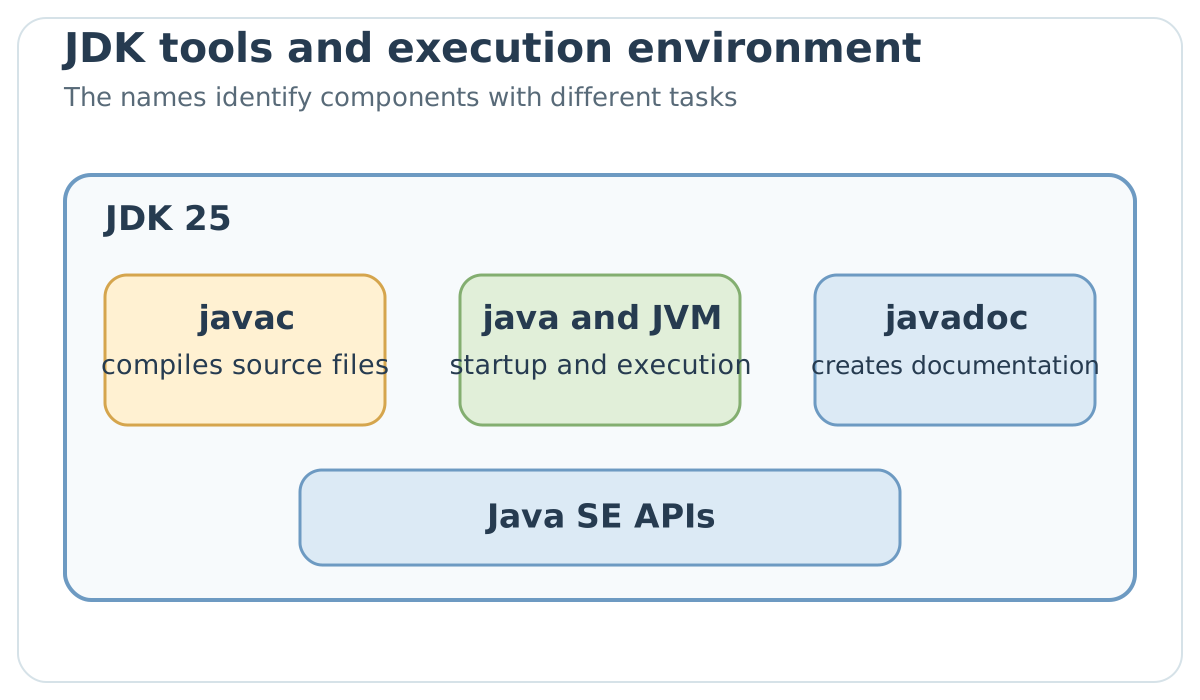
javac compiles, java starts the program in the JVM, javadoc creates documentation, and the standard APIs provide classes to use in code.Definition – API. An API is the set of operations and contracts that a component makes available to other components. Java's standard APIs include, for example, classes for strings, collections, files, and network communication. We will learn to use them when we have the concepts needed to understand their methods.
From Oak to Java 25
The language originated at Sun Microsystems under the name Oak and was later presented as Java. Subsequently, the project and its implementations underwent many changes: new features, new APIs, changes to the distribution model, and a more regular release schedule. Dates, support tables, and commercial licenses matter when choosing a JDK for an organization, but they can change during the book's lifetime. For a purchasing or distribution decision, always consult the terms of the chosen distribution and its current documentation.
This edition uses Java 25 as its reference. That does not mean Java 8 code has suddenly become unreadable. It means that, when several stable ways of solving a problem exist, we will explain the one appropriate to the current language and indicate the version requirement when it matters. The Java 25 platform specification and the JDK migration guide are the references for distinguishing current behavior from historical compatibility.
Important note – Distribution and language. Different vendors may distribute a JDK that conforms to the same Java version. Licenses, support duration, and available packages must be checked for each product and for the date on which you will use it. A performance difference between two distributions cannot be inferred from their commercial names alone.
Why Portability Was an Interesting Problem
In the early 1990s, the Sun team developing Oak was also thinking about devices other than ordinary computers. A program tied to the instructions of a single processor would have required considerable work to transfer to another device. The project changed direction as the Web grew, and Java was publicly introduced in 1995. If you are interested in history, this motivation is worth remembering: portability did not originate as an advertising slogan attached to an already finished language, but as a response to the variety of devices and execution environments.
The motto “write once, run anywhere” expresses the objective well, provided we read it carefully. Compiling to bytecode avoids producing native instructions for a single processor every time. However, the destination machine needs a compatible environment, and the application must use only resources available there. A file path written for one system, a native library, or a feature absent from the destination JDK can break the promise. That is why, in the coming examples, we will always distinguish the language version, API version, and external resources required by the program.
JDK distributions may have different licenses and support periods. A table of deadlines printed in a book can age quickly. Before choosing, consult the vendor’s contract and support page: the Java version name alone does not establish the terms of use. To follow the examples, instead check which JDK is installed and which stable features belong to Java 25. The first check concerns the chosen product; the second the platform on which to compile and run the code.
What Makes Java Recognizable
Java uses classes and interfaces to describe types and behaviors, but it is incorrect to say that “everything is an object.” An int value, for example, belongs to a primitive type and is not an instance of a class. The difference will become concrete when we assign values to variables and call methods. A variable has a type known to the compiler: this is the practical meaning of static typing. The compiler can reject certain incompatible combinations before the program starts, whereas other errors depend on values known only during execution.
Definition – Type. A type describes which values a variable or expression can represent and which operations are permitted. Java has primitive types, reference types such as classes, interfaces, and arrays, and precise rules for conversions and assignments.
voidindicates that a method does not return a value; it is not a variable in which to store data.
Automatic memory management frees the programmer from manually releasing objects' memory, but it does not close every resource for them. Java also has exceptions to represent abnormal conditions and tools for executing several activities concurrently. These are important features; however, they do not make a program safe, correct, or fast by definition. A file left open, an ignored exception, or a concurrent modification without coordination remains a problem in the program, even when the language provides tools for addressing it.
The standard libraries complement the language: strings, collections, files, networking, and many other features come as documented APIs. External tools, such as build systems and third-party libraries, belong to the ecosystem and follow their own release cycles. Maven is useful in the Java ecosystem, but it is neither a language keyword nor a mandatory component of every JDK. We will encounter it when a program has enough files and dependencies to justify a project tool.
Let us examine Java's features starting from the questions they answer, because each feature answers a question that will arise during the book. Syntax allows us to express statements and declarations; classes and interfaces help us define responsibilities and contracts; the type system allows the compiler to recognize many incompatible uses before startup. These tools are connected, but none replaces the others. A class can be syntactically valid and have confused responsibilities; a call can respect the types and still be logically wrong. That is why we will not use “compiles” as a synonym for “works.”
Exceptions give a form to conditions that interrupt an operation's normal path. They do not mean that Java repairs the error by itself: the API designer must decide which conditions to report, and its users must know how to react. Memory management removes many manual operations involving objects from the programmer's workload, but it does not guarantee that every resource will be closed or that the program will not retain unnecessary objects. Standard APIs offer components that have already been designed and documented; using them well still requires reading their contracts, including exceptional cases. These are three examples of a concrete promise accompanied by its limit.
Concurrency allows several activities to proceed during the same interval of time. If two activities touch the same data, however, the order in which operations occur may matter. Creating two threads will not suffice to obtain a faster or correct program; we will have to distinguish cooperation, data visibility, and coordination. Similarly, security does not arise automatically from a program running in the JVM. The platform offers checks, APIs, and boundaries, while the application must manage input, permissions, and dependencies according to its context. Presenting Java as “secure” without explaining against which risk would prepare readers to trust the wrong thing.
Finally, portability concerns the relationship between source code, bytecode, and compatible execution environments; it does not make operating systems, files, and native libraries identical. A large community, documentation, and project tools help us find solutions and grow an application, but belong more to the ecosystem than to the language's grammar. If we confuse these levels, we end up attributing to a keyword something that depends on a compiler, to a JVM something that depends on the operating system, or to the JDK something done by an external library. In subsequent chapters we will return to each of these topics with examples, rather than asking you to learn a list of adjectives.
From Source Code to a Running Program
A Java source file is text, usually with the .java extension. javac reads it, checks that declarations conform to the language, and produces one or more .class files. These files contain bytecode, instructions for the JVM. The java command starts a JVM that loads the necessary classes and executes the program. Compiling and executing are therefore two distinct steps: a program can compile correctly and fail during execution, or never reach execution because the compiler finds an error.
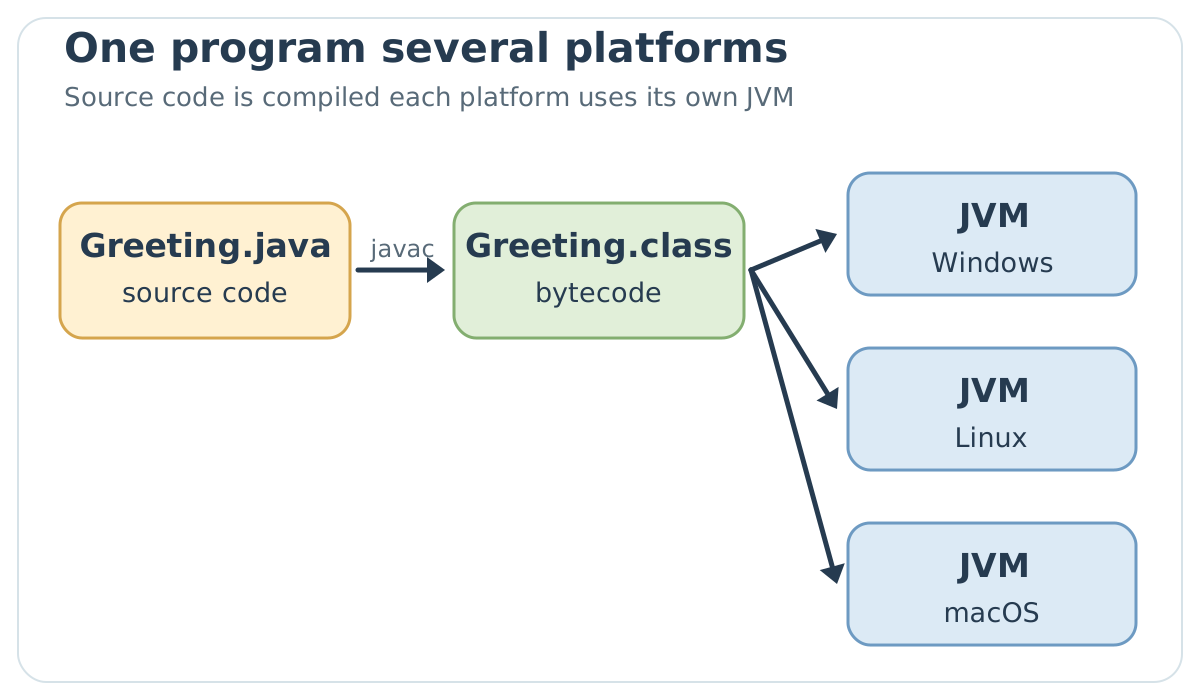
This architecture helps portability, but does not promise that every program will behave identically everywhere. An application may depend on files, permissions, data encoding, native libraries, or operating system details. If a dependency changes, the result may change too. The useful statement is more precise: conforming bytecode can be executed by a compatible JVM, provided that the APIs and resources the program needs are available.
Key concept – Three Different Moments. The compiler checks and translates the source; loading makes the necessary classes available to the JVM; execution produces the program's effects. Compilation does not “load classes into the JVM.” We will return to class loading in a dedicated chapter.
Let us pause on an example we will use shortly. We will write Greeting.java as readable text. The javac command will produce Greeting.class, which is not a document to modify with an editor: it contains the result of compilation. The java command will look for the Greeting class, start the entry method, and make a line appear in the terminal. If you change only the text inside Greeting.java, the .class file does not change by itself. You must recompile. This small detail causes many cases of “I corrected the program, but it keeps printing the old sentence.”
Important note – Bytecode Is Not Universal Machine Code. It is an instruction format for the Java virtual machine. Different JVM implementations execute that format on the systems they support. The JVM may interpret instructions, compile parts of the program during execution, or combine several strategies; the
.classfile remains distinct from the native executable produced for a single architecture.
Memory and Loading, Without Shortcuts
Java automatically manages objects' memory through a garbage collector. In simple terms, the runtime can reclaim the memory of objects that are no longer reachable from the program. This avoids many manual operations, but does not eliminate every memory problem: a program may retain unnecessary references, consume too many resources, or need to explicitly close files and connections. A pair of objects that refer to each other raises a useful question: does the cycle prevent the garbage collector from reclaiming them? Let us look at it precisely.
A class loader helps find and load the definitions of classes requested by the program. This does not simply mean “looking for a .class in the current folder”: the search depends on the class path, modules, loaders, and configuration. For now, it is enough to know that, after compilation, the startup command must be able to find the necessary classes. The chapter on loading will explore delegation, linking, and initialization.
Two objects that refer to one another do not necessarily remain in memory: for Java collectors, reachability from the program matters. Imagine A containing a reference to B, and B containing one to A: if no reference reachable from the program leads to either one anymore, the cycle does not automatically keep them alive. Conversely, a list mistakenly retained in a still-reachable field can hold thousands of objects even without any cycle. Counting arrows between objects is therefore not enough; we need to ask whether a path exists from something the program can still use.
| Situation | Path from the program | Consequence for understanding |
|---|---|---|
A variable that can still be used points to A; A points to B, and B points to A. |
Exists: program → A → B. |
The cycle is reachable; both objects remain usable through that path. |
No reachable root leads to A or B, even though they point to one another. |
Does not exist. | The two internal references alone are not a reason to retain them. |
The table makes object reachability visible without making the reasoning depend on a particular collection algorithm. In this introductory explanation, a root is a point from which the runtime can still reach objects used by the program, for example references available during execution. The exact moment of collection is not promised: “can be reclaimed” does not mean “will be reclaimed immediately.” The Java 25 documentation on reachability gives the formal definition; when we study memory in detail, we will also distinguish the different areas and implementation choices, but the decisive question about the cycle is already answered here.
An open file clarifies a different limit. If the program stops using the Java object representing that file, the object's memory can be reclaimed according to the runtime's rules. However, the operating system resource has its own lifecycle: the program must close it as specified by the API. Later, we will use try with resources precisely to make this responsibility explicit. Automatic memory management and resource management are not the same promise.
Class loading also deserves a correct picture. When we write java -cp build Greeting, we tell the command where to look for the application's classes. The runtime can already access its own platform classes; we do not have to list them individually in CLASSPATH. The environment can load other classes when needed. We should therefore avoid memorizing a fixed sequence such as “first all the base classes, then all the libraries, and finally all the user classes”: actual behavior depends on the program's requests and configuration.
Preparing the JDK
Install a JDK 25 distribution for your operating system, following the chosen vendor's instructions. After installation, open a new terminal and run:
java --version
javac --version
The first command checks that the Java environment starts; the second checks for the compiler. If java works but javac cannot be found, you might have a runtime-only environment or an incomplete command search path. If both are missing, check the installation and the environment variable the system uses to find executables. The exact message depends on the operating system: that is why the old screenshots of a package manager are not a reliable guide for every reader.
Good practice – Recording the Environment. When an example does not produce the expected result, record the version shown by both commands and the command you ran. These are the first useful details for reproducing the problem. A screenshot without the full command or version is much less useful.
Finding the Program the Terminal Is Using
If several JDKs are installed on the computer, java --version reveals which executable is selected in that terminal, rather than necessarily the JDK you installed most recently. The search uses the path configured in the environment. On macOS and Linux, you can use command -v java and command -v javac to see the resolved paths; on Windows, you can use where java and where javac. If the two commands point to different installations, compilation and execution might use mismatched versions. Before blindly modifying environment variables, record both paths and compare them with the directory of the JDK you intend to use.
Installing through the system’s package manager can be convenient, and a JDK package must include javac. Package names and available versions change between distributions and over time. That is why a Fedora, Ubuntu, Windows, or macOS reader must start with their vendor's documentation and then perform the same verifiable check: java --version, javac --version, compilation of a file, and execution of the result. Confirmation is not “the installer has finished,” but “I can compile and execute.”
The JDK includes other tools. jshell lets you try small fragments without preparing a project every time; javadoc generates documentation from structured comments; jar collects classes and resources in an archive; javap helps observe the structure of a class file. We will use them when they answer a concrete question. For now, javac and java are enough.
The javac Options We Will Actually Use
The official compiler manual distinguishes source files, the destination of compiled files, and the places to search for classes already available. If you do not specify -d, the .class file is normally written beside the source. We choose -d build to separate files we modify from generated files. This is a practical distinction: when an experiment does not work, we know what to delete and rebuild without touching the source.
With -cp or --class-path, we indicate where to look for required classes and libraries; --source-path concerns the search for other source files. In our first examples, everything is in one folder and these options are not very visible. When we organize code into packages, the package name will correspond to a directory hierarchy, and the destination specified with -d will mirror its structure. If the compiler cannot find a class, the right question is not immediately “is Java broken?”, but “where should it look for that class, and under which full name?”
If we need to compile many source files, we can pass them all to the command or write their names in an argument file and put @ before the filename. For example, a file sources.txt containing Greeting.java and Arguments.java, one name per line, can be passed as javac --release 25 -d build @sources.txt. The @ character tells javac to read arguments from that file; it is not part of a class name. This mechanism avoids very long command lines.
Let us read the command from the beginning without skipping a part. javac is the program we are starting. --release 25 requests compilation for the specified release, also checking the APIs permitted at that level; it does not install Java 25 on another computer. -d build indicates the root under which compiled files are written: if the source declares a package, the compiler creates the corresponding hierarchy under that root. @sources.txt provides the list of files to process. If sources.txt is not in the folder from which you run the command, the problem is not in a Java class's syntax: it is in the path of the argument passed to javac.
The --source-path option answers a different question from -d. The former indicates where to search for additional source files; the latter indicates where to write the generated classes. The -cp option instead concerns classes and archives already available as dependencies. In a project with a single class, we do not yet notice the difference, but when a file uses another type, we will see why the compiler must know how to find it. The class path used to compile and the one used to start a program both need consideration: successfully compiling against a library does not guarantee that the library will be available when the program starts.
Important note – Where to Look After an Error. If a source file is missing, check the working folder and the name written in the command. If a type is missing during compilation, check packages, visibility, source path, and class path. If compilation succeeds but startup cannot find a class, check the class path passed to
javaand the requested qualified name. Writing the exact message and command beside the problem is much more effective than blindly changing several options.
The First Application
I have written the classic “Hello world” so many times, in so many languages, that I want to break the ritual with a first application we can really examine. The message says “Hello, Java 25!”, but the question is not whether we managed to copy a sentence. We want to understand which files change when we compile, which class is started, and how to recognize an error at each step.
Let us create a file called Greeting.java with the following contents. You do not need to know every word yet: immediately afterwards, we will read the program from the outside in.
/** Displays a greeting and lets us verify compilation and execution. */
public class Greeting {
    public static void main(String[] args) {
        System.out.println("Hello, Java 25!");
    }
}
The public class name, Greeting, corresponds to the filename without .java. The braces enclose first the class and then the main method. The method is the point from which this application begins when we start it. System.out.println writes a line to the terminal. The words public, static, and void have precise meanings: for now, treat them as part of this entry point's form; we will return to them when studying methods and visibility.
A source file’s length can help us recognise a responsibility that has grown too broad, but it is not a rule of correctness. The language has no threshold of 500 or 2,000 lines beyond which a class stops being correct. If a file grows so much that reading and modifying it become difficult, let us ask which responsibilities coexist in it and whether some deserve a separate type. The filename, however, must respect a concrete rule: if it contains a public class Greeting, the source is called Greeting.java, with the same capitalization. The operating system may treat filenames differently, but relying on a capitalization difference invisible on one machine creates problems when the project moves.
In the folder containing the file, run:
javac --release 25 -d build Greeting.java
java -cp build Greeting
The first command asks javac to compile for Java 25 and put the generated files in the build folder. The --release option controls the language version, bytecode format, and APIs available for the specified release; it does not install that version on another machine. The second command uses -cp to indicate where to look for the class and starts it using the name Greeting, without .class. The expected output is Hello, Java 25! followed by a newline. The javac manual documents the options used here.
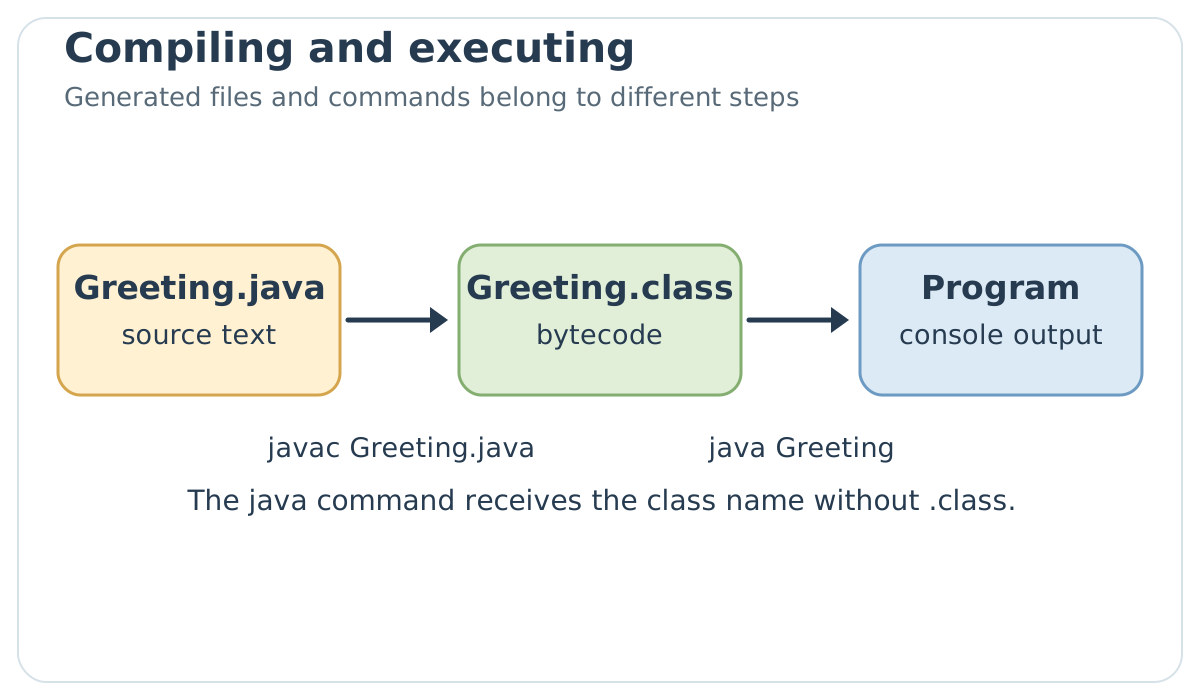
javac produces from what java does.If you write javac Greeting without the file extension, the compiler does not receive the source file you intended to specify. If you write java Greeting.class, the startup command receives an incorrect class name for this form. An error like this is a good opportunity to observe the message, correct a single detail, and try again.
The moment at which an error appears also helps us understand where to look. If javac reports a missing brace, the program has not yet started: correct the source and recompile. If javac finishes without errors but java cannot find the main class, look at the name passed to the command and the class path root; changing the contents of println does not solve that problem. If, instead, the program starts, prints a line, and then displays an exception, the classes and entry point had been found: now we need to follow the error trace during execution. These are three different diagnoses that, in the terminal, may all seem like “Java does not work.”
Let us perform a controlled experiment. Compile Greeting.java and check that build/Greeting.class has been created. Change the greeting text in the source, but start the program without recompiling: you will still see the previous text. Now recompile and start it again. This is not capricious JVM behavior: you were executing old bytecode while the change remained only in the source file. Repeating this experiment once is more useful than memorizing “you have to compile” without seeing which files actually change.
We can break the tradition of always starting with “Hello world” and call the program MyFirstApplication. The greeting remains short to isolate compilation: choose a sentence of your own and watch when the output changes. The filename must exactly follow the public class name, including upper- and lowercase letters. On some filesystems, a capitalization error may be less obvious than on others; however, the language and tools' rule must not rely on the disk's tolerance.
Arguments: From the Minimal Case to the Complete Case
The example with args[0] shows us just one value. Let us now try a program that works with any number of arguments, including zero. The complete file is called AllArguments.java.
/** Displays all received arguments in order. */
public class AllArguments {
    public static void main(String[] args) {
        for (int i = 0; i < args.length; i++) {
            System.out.println("Argument " + (i + 1) + " = " + args[i]);
        }
    }
}
The for loop starts from i = 0, repeats the body while i is less than args.length, and increases i after each pass. args.length is the number of elements present; the last valid index is therefore args.length - 1. In the output we use i + 1 only to number arguments as a person would: internally, the first element remains args[0]. If the array is empty, the condition 0 < 0 is immediately false and the program ends without printing anything, avoiding the error in the minimal example.
Compile with javac --release 25 -d build AllArguments.java, then run java -cp build AllArguments first second third fourth. You should read four lines, from the first Argument 1 = first to the last Argument 4 = fourth. Also try java -cp build AllArguments with no additional words and explain why no line appears. When we study loops, we will return to the same statement in greater detail.
The String[] args parameter contains the arguments passed after the class name on the command line. In our program we do not use them. Let us now try reading one through a minimal experiment. Create Arguments.java:
/** Displays the first argument received from the command line. */
public class Arguments {
    public static void main(String[] args) {
        System.out.println("First argument: " + args[0]);
    }
}
Compile it with javac --release 25 -d build Arguments.java, then run java -cp build Arguments first. You will see First argument: first. The word first after the class name reaches the program as text. args is an array, a sequence of elements we will explore in chapter 4; [0] indicates the first element, because indexes start at zero. If you start this example without the argument, the program fails when attempting to read a nonexistent element. In chapter 5 we will learn to check args.length before accessing the array. The documentation for the java command confirms that arguments written after the class name are passed to the main method.
Comments and Documentation
A // comment occupies the rest of the line. A /* ... */ comment can cover several lines. The compiler does not execute them. They explain a reason or rule that the code alone does not make clear. Writing // print the greeting beside println("Hello") adds little; explaining why a value must satisfy a condition can prevent a future error.
Try reading these three cases as a future colleague who needs to modify the program. // increase i beside i++ repeats what the code shows. // indexes start at zero near the first access to an array can instead help a new reader, but becomes redundant once the concept has been learned. A note such as // keep the original order because the receipt follows insertion order preserves a design reason that the statement alone does not express. The best comments do not compensate for confusing names: first we make the code readable, then document the reasons for non-obvious choices.
The three delimiters are not interchangeable. // ends with the line; /* ... */ delimits an ordinary block; /** ... */ introduces a comment that the javadoc tool can associate with a declaration. A comment block should not be used to temporarily “switch off” code that already contains other block comments: the delimiters do not nest in the way you might expect. For a brief experiment, it is clearer to use version control or directly change the relevant lines.
The comment preceding Greeting starts with /**: it is a documentation comment. The javadoc tool can use it to produce browsable documentation. In classes intended for other programmers, good documentation says what a method promises, what its parameters mean, and which exceptional cases its users must consider. Tags such as @param and @return help structure the information, but must not repeat the parameter name without explaining anything. The javadoc manual and comment specification clarify the form recognized by the JDK.
Consider a small method that calculates the price after a discount. A useful comment would say whether the discount is a percentage between 0 and 100, how the result is rounded, and what happens for an out-of-range value. The sentence “calculates the discounted price” is less useful than the method name itself. In a structured comment, @param percentage should describe the parameter's meaning and domain; @return should describe the result, rather than merely say “returns a number”; @throws should indicate under what circumstances an exception can be thrown. These are promises to those who will use the method and must remain aligned with the code.
For reading everyday documentation, it is useful to know these tags: @param describes a parameter, @return the returned value, @throws an exceptional condition, @see a useful reference, and @since the introduction of part of the API. @deprecated accompanies an element that should no longer be chosen for new code, but the Java annotation @Deprecated has a distinct role in reporting deprecation to tools. Do not invent @return void: a void method has no return value to document. The correct tag is @version, not @versione, if we decide to use it.
To read a documentation comment without treating it as a collection of formulas to copy, keep this table beside you. The descriptions indicate the content to explain: the tag alone adds no knowledge for those who will use the method. The JDK 25 Javadoc specification also clarifies which declarations permit each tag.
| Tag | What the reader must understand | An error to avoid |
|---|---|---|
@param name |
Meaning of a parameter, permitted values, and units where relevant. | Merely repeating “the name parameter.” |
@return |
Meaning of the result and special cases. | Writing @return void for a method without a result. |
@throws Exception |
Condition under which the method reports the problem. | Listing an exception without saying when it occurs. |
@see |
A related element that helps use the API. | Referring to a page without explaining the relationship. |
@since |
Version in which the documented element was introduced. | Confusing it with the project's current version. |
@version |
Version of the documented software, when exposing it makes sense. | Writing @versione, which is not the standard tag. |
@deprecated |
Reason the element is obsolete and alternative, if one exists. | Merely saying “do not use” without a practical path. |
The difference between @since and @version seems small until you update a library. If a class appeared in version 2 of your project and is still present in version 5, @since 2 continues to describe when it arrived; @version 5 can describe the version of the documented software. Changing every @since at each release would erase useful history for those who need to know when that class became available. The @version tag, on the other hand, is displayed by the standard doclet when the corresponding option is requested; we must not assume that every piece of information written in the source always appears in the generated pages.
For a method returning an int, the reader needs to know whether the value represents euros, cents, seconds, or a count. For a method receiving a percentage, they must know whether 20 means twenty percent or whether 0.20 is expected. This is information the type alone does not express. Here, @param, @return, and, when a condition can fail, @throws become part of the API's contract. The discounted-price example is not chosen to teach tag syntax: it shows why documenting the meaning of a number can prevent errors even when the program compiles without any warning.
You can generate the documentation for a public class with javadoc -d docs Greeting.java, from the folder containing the source. The -d docs option indicates the destination of the generated pages. Open the initial file in the docs folder and compare the text with the source comment. You will immediately see why an incomplete comment cannot become complete documentation simply by being transformed into HTML.
The javadoc command is not an automatic proofreader of explanations. If a sentence promises that a method always returns a result but the code can instead throw an exception, the HTML page will repeat an incorrect promise in a more elegant form. The tool can report various structural problems and has checks such as DocLint, but the contract's correctness must be read by comparing the comment, implementation, and examples. For a library intended for other programmers, this reading is not a luxury: documentation is often the first point of contact with the code's behavior.
Java version – Javadoc Comments in Markdown. JDK 25 also recognizes documentation comments made up of lines starting with
///, alongside the traditional/** ... */form. The standard doclet specification describes their syntax and limits. In the first examples we retain the traditional form, already present in many Java source files; knowing the other form helps read newer source files without mistaking those lines for three unrelated ordinary comments.
What Does HotSpot Do?
HotSpot is one JVM implementation. During execution, it can observe the program and compile parts worth optimizing into native code; hence the term just-in-time compilation, or JIT. It does not change the meaning of the Java source and does not imply that every program becomes faster in every situation. Performance and resource consumption are measured with a real workload and a stated environment. To learn to write Java, you do not need to tune the JIT compiler straight away: distinguishing what javac does before startup from what a JVM can do while the program runs is enough.
Try imagining an application repeating the same processing millions of times and another that starts, prints one line, and ends. In the first case, the JVM may have time and data to identify frequently executed parts and optimize them; in the second, the work needed to start and observe the program may outweigh the time saved on that single line. “HotSpot” specifically draws attention to execution's hot spots, but the choice of optimizations is more complex than counting calls. The JVM may also reconsider a decision when the observed conditions change.
JIT compilation does not make the program “leave” the JVM: native code produced during execution remains managed by the runtime, which continues to provide services such as memory management, class linking, and exceptions. An absolute comparison with C++ also does not hold without a stated task and measurement. For a beginning programmer, the practical rule is simple: first build a correct, measurable program; then, if speed is a requirement, observe where it spends its time instead of attributing every difference to the presence of bytecode.
A Practical Check
Modify the greeting text, recompile, and run again. Then change only the source without recompiling: what appears? The experiment has succeeded if you can explain why the .class file retains its previous behavior until it is produced again. As a self-check, indicate which command you would use to find the compiler version, which file is the source, and where the bytecode is located after the -d build option.
If the experiment does not produce what you expected, do not change three things at once. Start with javac --version: are you calling the compiler you thought you had installed? Then recompile Greeting.java with javac --release 25 -d build Greeting.java and check that build/Greeting.class has been updated. Finally, run java -cp build Greeting. The name after -cp is a directory from which to search for the class, whereas Greeting is the name of the class to start; writing Greeting.class in that position confuses the two roles. If the old message still appears, check the directory from which you run the commands and look for any other copies of Greeting.class in the class path used. Diagnosis follows the same chain as the drawing: source, compilation, bytecode location, startup.
Also try making a deliberate error in the source, for example removing the closing quotation mark from a string. javac must reject the file and report a position near the problem. Do not interpret an old .class still present as proof that the new source is correct: that file is the result of the last successful compilation, rather than the one that just failed. After restoring the quotation mark, recompile and compare the output. This exercise distinguishes a compilation error from an error during execution better than a memorized definition.